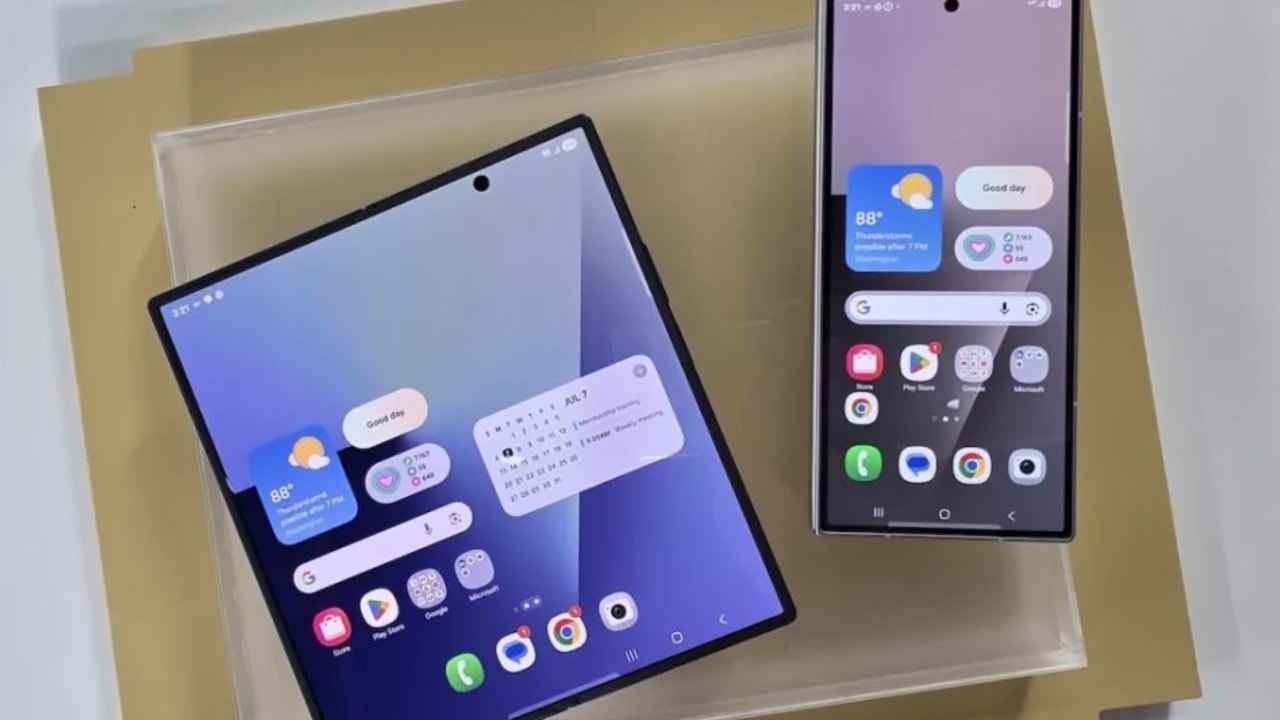
Samsung’s Galaxy Z Fold 7 has just hit the stores, and with it comes the question: Why do you need a foldable smartphone, and what can it actually do for you? To find the answers, we reviewed the new model (you can find the full review here) and tested the advantages of using such a device.
Quick switch between external and internal screens
The Fold 7 comes with two screens: A 6.5-inch external display and a huge 8-inch internal display. Essentially, it’s like a mini tablet that fits into your jeans pocket. The external and internal screens communicate with each other — for example, you can open Facebook or Instagram on the outer screen, start using them, and then switch seamlessly to the inner screen without doing anything. The same works with other apps like Gmail.
Three windows, drag and drop
Often, you need information from two apps simultaneously — whether reading a message and inputting details into another app, or browsing the web alongside another app. On the Fold 7, this is not only possible but especially convenient, both in terms of activation (opening the toolbar at the bottom and dragging the desired apps) and in how it adapts to the screen size. Since it’s a large display, you can even open three apps at once and enjoy real multitasking. On top of that, you can easily drag and copy content between open apps.
A more convenient way to make Zoom calls
The Fold 7 can physically fold into a laptop-like form (90 degrees). This is called Flex Mode, and some apps are already optimized for it. For example, in Zoom calls, the app automatically splits the screen in landscape mode — participants appear on the top half, while the controls (like share, participants list, and camera toggle) appear at the bottom. Aside from the screen split convenience, you don’t even need a stand, since the device can sit upright on a table like a laptop.
Built-in tripod
Flex Mode also turns the Z Fold 7 into a mini tripod. You can partially open the device, place it steadily on a surface, and film yourself — whether with the external or internal camera — without needing a dedicated phone stand.
See your photo instantly
The large internal screen makes photography a bit different than on a regular phone. The key advantage is that you can split the screen in two: One side shows the camera interface, while the other displays the photos you just took. This way, you immediately know if you got the shot you wanted.
Take better selfies
Normally, we take selfies with the front-facing camera, since it’s convenient to see ourselves on the screen while shooting. On the Fold 7, however, you can use the higher-quality rear cameras while still seeing yourself on the external display (with the device open).
Desktop stand for Netflix
Flex Mode also makes watching movies more convenient by splitting the screen in landscape mode. This creates a natural stand for content viewing without extra effort. The streaming apps I tested that support this mode are Netflix and YouTube (but not Disney+).

The ultimate screen for reading books
Beyond movies — whether Netflix or Disney+ — the large screen also makes this smartphone an ideal e-reader. Although Hebrew apps like Ivrit or Steimatzky aren’t optimized for the Fold 7’s display, it’s still very comfortable to read books on it, saving you from carrying a tablet or a dedicated e-reader.
The competition over AI in browsers continues.
Microsoft has launched Copilot Mode, a new experimental feature in its Edge browser, designed to make web browsing more efficient. You can enable it here, and if you wish, disable it later.
Copilot Mode adds AI capabilities to the browser, trying to anticipate what you want to do rather than waiting for your action. According to Microsoft, it “becomes your partner in organizing endless open tabs, reducing clutter and enabling smoother flow.”
When you open a new tab in Edge with Copilot Mode, you get a clean page with a single input box that unifies Copilot chat, search, and web navigation. Copilot is designed to understand user intent and help start browsing more quickly.
Copilot Mode — understanding what’s happening across all tabs
With permission, Copilot can access all open tabs to understand the full context of what you’re browsing, saving you from jumping between them. For example, if you’re looking for vacation rentals across multiple sites, you can ask Copilot and quickly find out which option is closest to the beach and includes a fully equipped kitchen, eliminating unnecessary hassle.
The new mode also introduces natural voice navigation (although the Hebrew accent Microsoft used here sounds a bit off). You can speak directly to the browser, explaining what you want to do — whether locating a specific page or opening several tabs for product comparison.
Additionally, soon you’ll be able to grant Copilot access to more browser contexts, such as browsing history and login details, enabling more advanced actions like booking reservations or managing tasks. For instance, you could ask for a paddleboard rental near your workplace, and Copilot would not only find the best option but also check the weather forecast, place the booking, and even suggest sunscreen or instructional videos to help you prepare.
You can also use Copilot on any page without losing your place. Whether it’s converting measurements in a recipe or translating content, Copilot appears in a dynamic side panel while keeping the original page open. This helps handle distractions like pop-ups or overly long posts and makes it easier to locate information quickly.
Soon, Copilot will also assist in managing tasks and organizing browsing into useful topic-based tracks. These tracks will suggest next steps, helping maintain focus and move projects forward. For example, if you recently searched for information about starting an online business, Copilot will recognize this and suggest relevant insights, such as recommending a video guide on different ways to build content.